Conda is not recognized? Here’s why, and how to fix it fast.
tldr
It’s not a broken install - Windows doesn’t know where you installed conda. Just tell it.
- Open
Anaconda Promptfrom Start menu. Everything works there. Done. - For it to work everywhere else: add the three
anaconda3folders to User PATH (steps below), restart terminal. - PowerShell complains?
conda init powershell(steps below), restart. - Just want python to work? Use
pyinstead ofpython.
You follow the official Anaconda guide. Installer finished. Restart. You opened cmd, typed conda --version, and got:
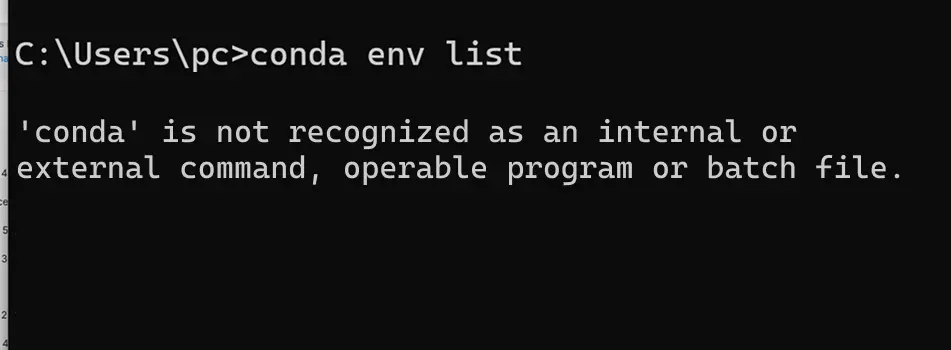
‘conda’ is not recognized as an internal or external command, operable program or batch file.
Forum threads from 2017 say same thing, and here’s why.
Who isn’t recognizing what?
Windows doesn’t know what conda is. When you type conda in a terminal, Windows searches a list of folders for a file called conda.exe. That list is the PATH environment variable. If the folder containing conda.exe isn’t in that list, Windows has no idea what you’re asking for - hence “not recognized”. When you type zelda into your terminal, same thing.
The Anaconda installer offers to add itself to PATH. But the checkbox is literally labeled as a warning:
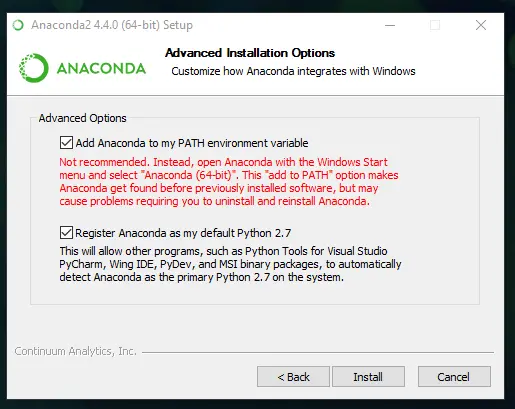
It’s not recommended - because if you add conda to PATH, it can shadow other Pythons on your system. So you’d keep it unchecked, sounds reasonable.
Anaconda Prompt first, PATH, how to fix it.
If you’re on Windows, open Anaconda Prompt from the Start menu instead of cmd. It already has conda activated - it’s a cmd shortcut with conda pre-loaded. Everything works there. Done.
If you want conda to work in cmd, PowerShell, VS Code, everywhere - easy PATH fix. Here’s how:
- Find where conda is. Default location is something like
C:\Users\<you>\anaconda3\ScriptsandC:\Users\<you>\anaconda3\Library\bin(miniconda users: replaceanaconda3withminiconda3). You can check this by typingwhere condainto your Anaconda Prompt. - Open Start, search “Environment Variables”, click Edit the system environment variables, then the Environment Variables… button.
- Under User variables, find
Path, select it, click Edit. - Click New and paste these paths (replace
<you>with your name):
C:\Users\<you>\anaconda3; C:\Users\<you>\anaconda3\Scripts; C:\Users\<you>\anaconda3\Library\bin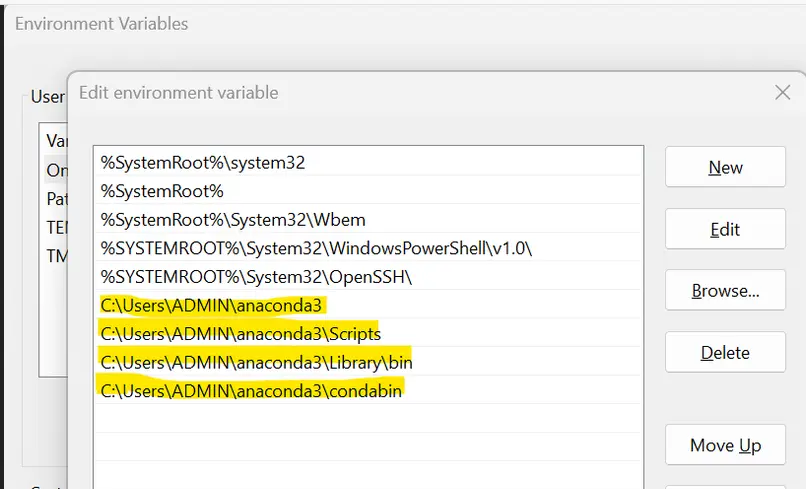
- We’re done. Now restart your terminal.
- Start a new terminal, type
conda --version- should work perfectly.
That’s it. Three folders, one restart.
I did that and it still doesn’t work
It’s interesting.
Modern Anaconda uses conda init, which modifies your shell profile (.bashrc on Git Bash/WSL, PowerShell profile on PowerShell) to activate the base environment on startup. So even with correct PATH, PowerShell might refuse to run conda unless the profile is set up:
# in PowerShell - if you get an execution policy error:
Set-ExecutionPolicy -ExecutionPolicy RemoteSigned -Scope CurrentUser


# then check:
conda init powershell
Then restart PowerShell. If it worked, you’ll see (base) appear at the start of your prompt. That (base) means conda activated itself - which is what conda init does.
If you installed Anaconda for “Just Me”, paths are under your user folder - so you have to edit the User variables, not System. Editing the wrong one won’t fix it.
How to check what’s broken
Run this in cmd:
where conda- If it prints a path - conda is findable, your problem is shell activation, probably.
- If it prints “INFO: Could not find files” - it’s a PATH problem. Add it to PATH. Steps above
- If
where pythonprints a different folder than Anaconda’s, you have two Pythons competing, which leads me to…
Python version of this error
python is not recognized is the same thing. If you installed Python from python.org and forgot the “Add python.exe to PATH” checkbox (it’s the last checkbox in the installer, below the “Install Now” button - designed to be missed):
…the fix is identical - add C:\Users\<you>\AppData\Local\Programs\Python\Python3XX\ and its Scripts folder to PATH.
Pro Tip: the installer offers “Use admin privileges when installing py.exe”. py launcher that comes with it works without PATH. Type py instead of python, and it finds your Python regardless of PATH:
> py --version
Python 3.12.4
> py -m pip install numpy
Works perfectly. If you don’t care about cmd compatibility, this is the lazy way.
Why it breaks after updates?
- You updated Anaconda/Miniconda and new install is in a different folder; PATH has remained the same.
- You installed Python from Microsoft Store. It stashes python.exe somewhere weird (
WindowsApps, which has permission quirks) and shadows your real install. Uninstall one of them. - Multiple installers. python.org + Anaconda + Microsoft Store Python. More isn’t better, pick one. Check where each one is (
where python), decide which one you want to keep.
Footnotes:
- Anaconda docs prefer Anaconda Prompt or
conda activate. - PowerShell’s execution policy blocks the profile scripts
conda initwrites.RemoteSignedforCurrentUserscope doesn’t require admin and fixes it. whereis the Windows equivalent ofwhich. It prints every matching program in PATH order. You can quickly check if you have multiple installs ofpythonor something else.